Managing Ingredients
Ingredients are the foundation of your recipe costs. Every item you use in recipes—from flour to chicken to olive oil—lives in your ingredient database.
Overview
Your ingredient database is where you:
- Add ingredients you use in recipes
- Track costs through vendor pricing
- Define conversions between units (cups to grams, etc.)
- Set preparation yields for waste tracking
- Tag allergens for food safety
Ingredients connect to everything else in PrepStation:
Ingredients → Recipes → Menus → Costs
     ↓
Vendor Items → Invoices → Inventory
Finding Your Ingredients
Navigate to Ingredients from the main menu to see your ingredient database.
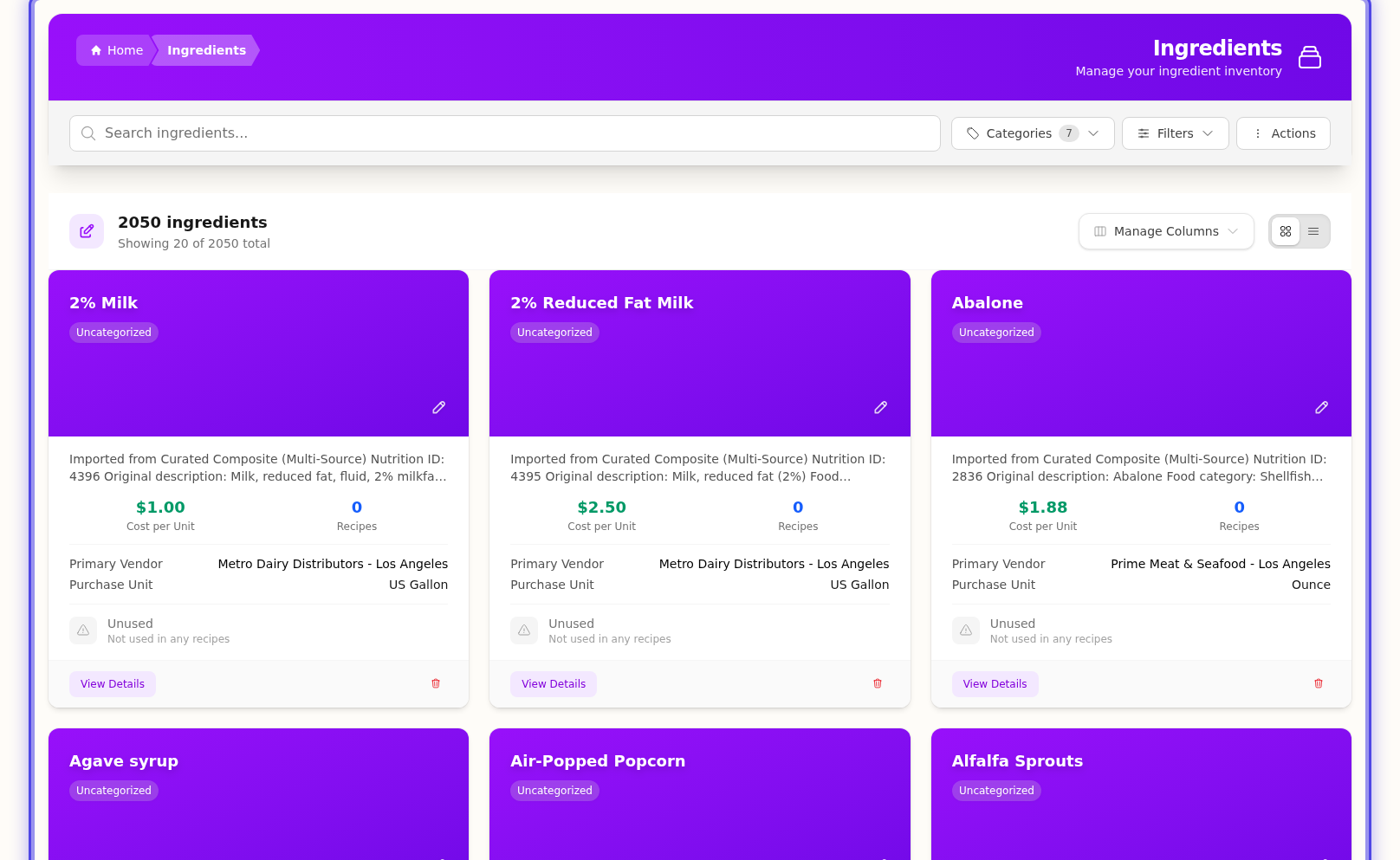
Searching and Filtering
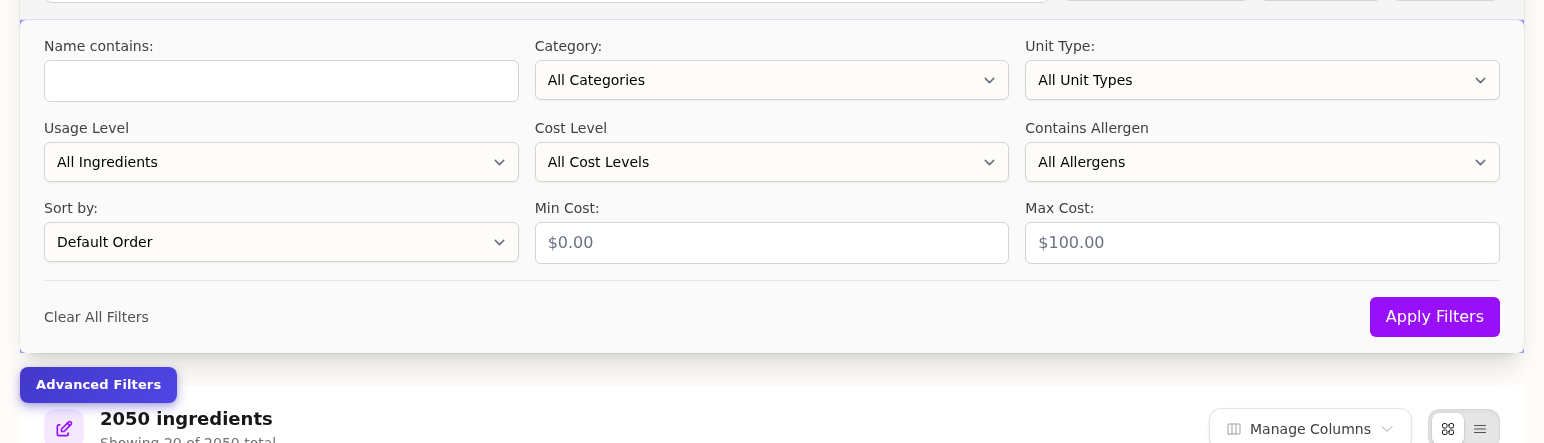
| Filter | Use For |
|---|---|
| Search | Find by name or description |
| Category | Filter by food category (Produce, Dairy, Meat, etc.) |
| Allergen | Find ingredients containing a specific allergen |
| Usage | Filter by how often ingredients are used (High, Medium, Low, Unused) |
| Cost | Filter by price range |
Sorting Options
Click column headers to sort by:
- Name (A-Z or Z-A)
- Cost per unit
- Category
- Date added
Filtering by Category
Advanced Filters
Adding Ingredients
Two Ways to Add
| Method | Best For |
|---|---|
| Import from Library | Common ingredients with pre-built data |
| Create Manually | Custom or proprietary items |
Import from Library (Recommended)
The Ingredient Library includes thousands of ingredients with nutrition data, unit conversions, yields, and allergens already set up.
- Go to Ingredients → New Ingredient
- Search for the ingredient
- Look for results in the PrepStation Library section
- Click to import
Create Manually
- Go to Ingredients → New Ingredient
- Enter a Name (required)
- Add a Description (optional but helpful)
- Select a Category (for organization)
- Click Create Ingredient
Tip
After creating an ingredient, you'll need to add vendor pricing before it can calculate costs in recipes. See Vendor Costs.
Editing Ingredients
Click any ingredient to view and edit its details.
Basic Information
| Field | Description |
|---|---|
| Name | What you call this ingredient |
| Description | Additional details or notes |
| Category | Food category for organization |
| Notes | Internal notes (not shown in recipes) |
Image
Add a photo to help identify ingredients:
- Click Add Image or the image placeholder
- Upload a photo (JPG, PNG)
- The image appears on the ingredient card and in searches
Organizing with Categories
Categories help you find and group ingredients.
Built-in Categories
PrepStation includes common food categories:
- Produce
- Dairy
- Meat & Poultry
- Seafood
- Bakery
- Dry Goods
- Spices & Seasonings
- Beverages
- And more...
Using Categories
When viewing ingredients:
- Filter by category to narrow your list
- Category badges appear on ingredient cards
- Categories are included in exports
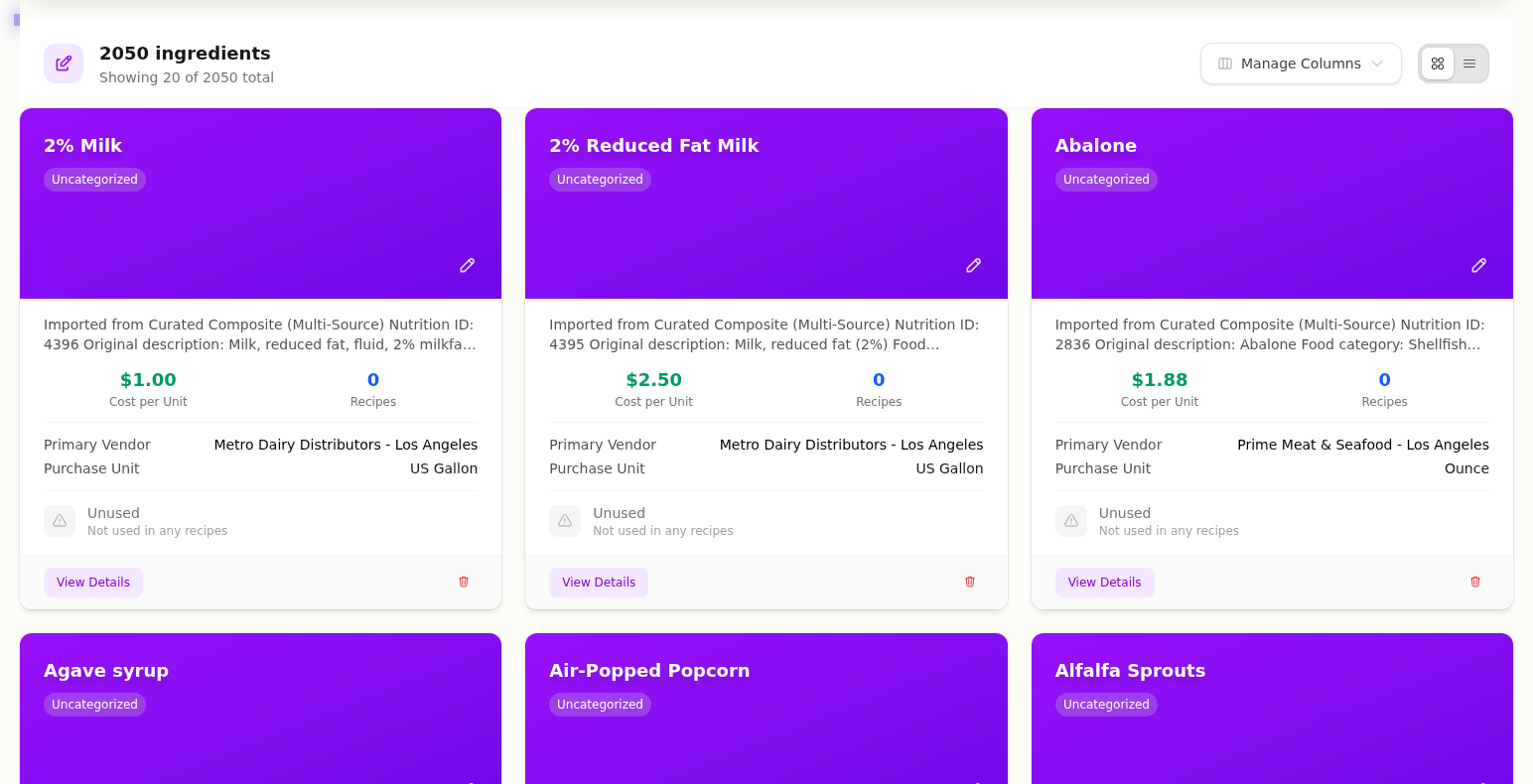
Ingredient Details Page
Each ingredient page has sections for:

Vendor Items & Pricing
Shows all vendor products linked to this ingredient with their pricing. The preferred vendor price is used for recipe calculations.
See Vendor Costs for details.
Preparations & Yields
Lists preparation methods with yield percentages (e.g., "Peeled" at 85% yield).
See Preparation Methods & Yields for details.
Allergens
Shows tagged allergens with presence type (Definite, Potential, Traces).
See Allergens for details.
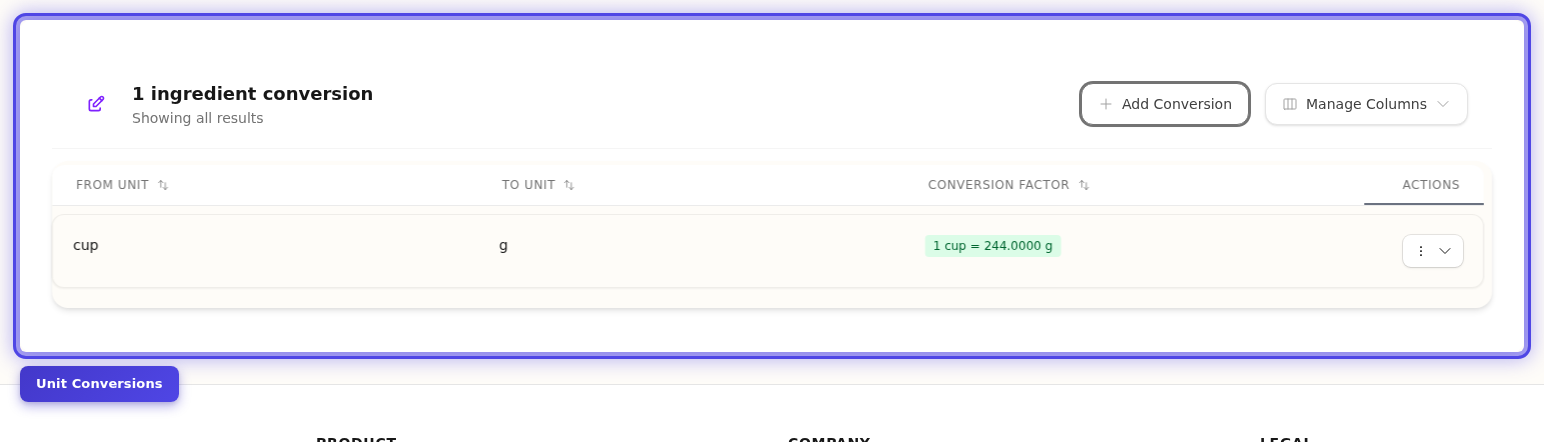
Unit Conversions
Lists custom conversions between units (e.g., 1 cup = 125g for flour).
Recipes Using This Ingredient
Shows all recipes that include this ingredient, with quick links to each recipe.
Cost History
Charts how this ingredient's cost has changed over time as you process invoices.
Deleting and Archiving
Deleting an Ingredient
When you delete an ingredient:
- It's moved to the archive (soft delete)
- Recipes using it will show a missing ingredient warning
- Historical data is preserved
To delete:
- Open the ingredient
- Click Delete (or use the Actions menu)
- Confirm the deletion
Note
Deleting an ingredient doesn't delete it from recipes that already use it. Those recipes will show a warning that the ingredient is missing.
Restoring Archived Ingredients
If you delete an ingredient by mistake, or need it again:
- Go to Ingredients → Archived
- Find the ingredient
- Click Restore
The ingredient returns to your active list with all its data intact.
Exporting Ingredients
Export your ingredient database to a spreadsheet:
- Go to Ingredients
- Click Export (or use the Actions menu)
- Choose which fields to include
- Download the CSV file
Exports include:
- Name and description
- Category
- Cost per unit
- Unit type
- Allergens
- And more...
Common Questions
Q: How do I set the cost for an ingredient?
A: Costs come from vendor items. Add a vendor item with pricing, then set it as preferred. See Vendor Costs.
Q: What's the difference between ingredients and vendor items?
A: An ingredient is your universal item (e.g., "All Purpose Flour"). Vendor items are specific products from suppliers (e.g., "Sysco AP Flour 50lb"). One ingredient can have multiple vendor items.
Q: Can I have the same ingredient with different costs?
A: Yes! Link multiple vendor items to one ingredient. Each vendor can have different pricing. The preferred vendor's price is used for recipe calculations.
Q: How do I merge duplicate ingredients?
A: Currently, you'll need to manually update recipes to use one ingredient, then archive the duplicate. Check "Recipes Using This Ingredient" on each to see what needs updating.
Q: Why doesn't my ingredient show a cost?
A: The ingredient needs a preferred vendor with pricing set. See Vendor Costs to add vendor pricing.
Next Steps
- Ingredient Library — Import ingredients with pre-built data
- Vendor Costs — Add pricing from your suppliers
- Preparation Methods & Yields — Track waste and prep loss
- Allergens — Tag ingredients for food safety
Last updated: October 09, 2026