Recipe Player
The Recipe Player transforms your recipes into an interactive, hands-free cooking guide designed for kitchen use. With large touch-friendly controls, built-in timers, and ingredient tracking, it keeps your device's screen on and your workflow moving smoothly—even with messy hands.
What is the Recipe Player?
What it is: A step-by-step cooking interface that displays one instruction at a time with integrated timers, progress tracking, and ingredient checklists.
Why you'd use it:
- Follow recipes hands-free while cooking
- Track your progress through complex recipes
- Automatically time each step when durations are set
- Check off ingredients as you prep them
- Jump to any step instantly from the overview panel
How it fits together:
Recipe → Recipe Player
  ├── Step-by-Step Instructions (with timers)
  ├── Ingredients Panel (check off as you prep)
  └── Overview Panel (jump to any step)
Launching the Recipe Player
You can start the Recipe Player from several places:
- From the Recipe Editor: Click Play Recipe in the navigation dashboard
- From Recipe Cards: Click the Play Recipe button on any recipe card
- From Recipe Overview: Click the prominent Play Recipe button
Watch the player launch:
Player Interface Overview
The Recipe Player has a clean, kitchen-optimized layout:
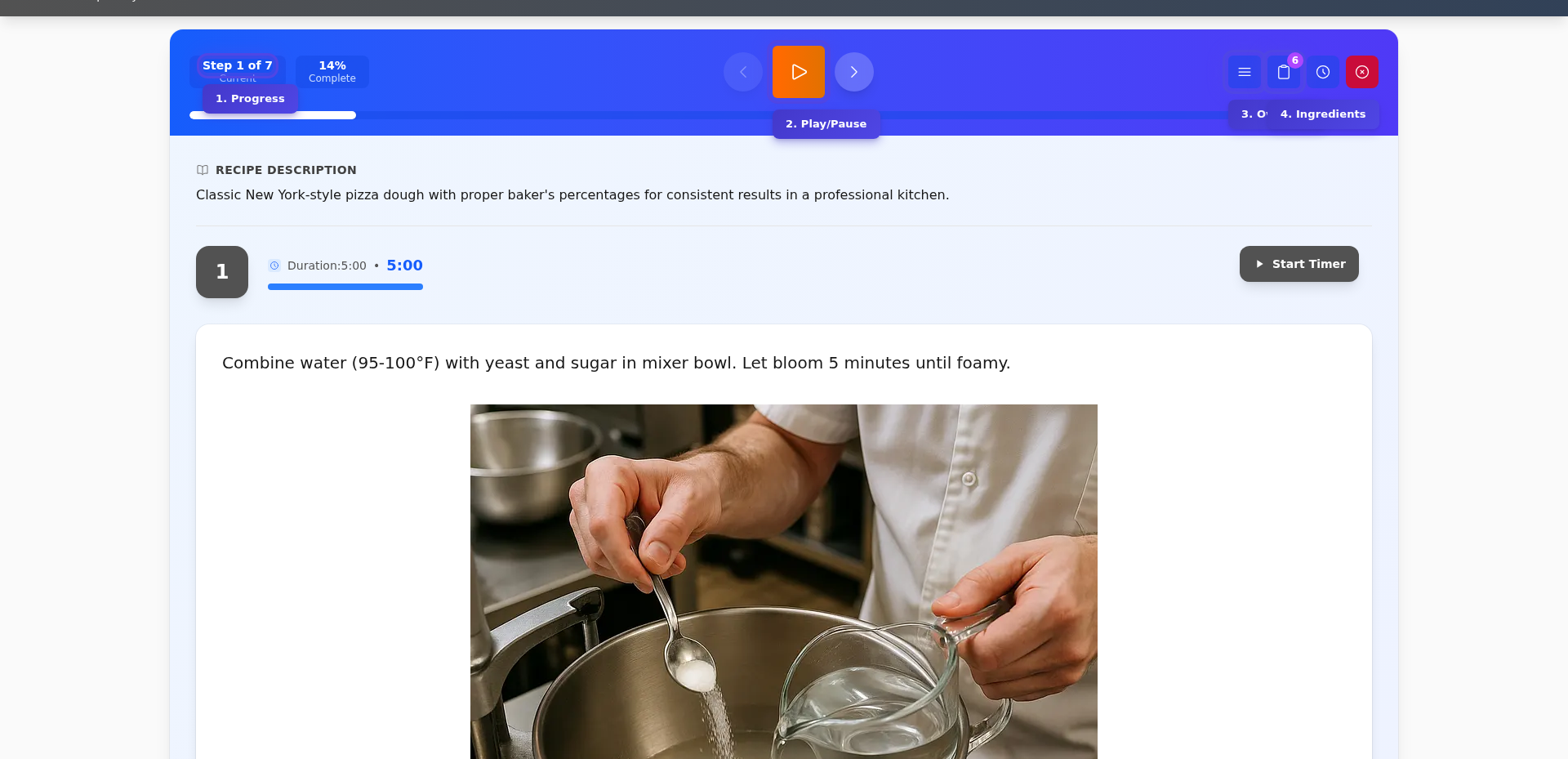
Top Controls
- Progress Stats - Shows current step and completion percentage
- Main Controls - Previous, Play/Pause, and Next buttons
- Panel Buttons - Quick access to Overview, Ingredients, and Timers
- Emergency Stop - Stops all timers and playback immediately
- Progress Bar - Visual progress through the recipe
Main Content Area
The current instruction displays prominently with:
- Step number and duration
- Timer controls (if the step has a duration)
- Full instruction text
- Safety notices for temperature-related steps
Navigating Through Steps
Manual Navigation
Use the Previous and Next buttons to move between steps at your own pace. You can also:
- Press ← (left arrow) for previous step
- Press → (right arrow) for next step
Navigate between steps:
Auto-Advance Mode
Press the Play button (or Spacebar) to start cooking mode:
- The player automatically advances to the next step when timers complete
- All step timers start automatically as you progress
- Press Pause to stop auto-advance while keeping timers running
Start cooking with auto-advance:
Tip: Auto-advance mode keeps your screen on (wake lock) so the device won't sleep while you're cooking.
Working with Timers
If your recipe instructions have durations set, the player shows timer controls for each step.
Starting a Timer
Click the Start Timer button to begin the countdown for the current step:
Timer Features
- Countdown Display - Shows remaining time prominently
- Progress Bar - Visual indication of time remaining
- Color Changes - Timer turns red when under 60 seconds
- Pulse Animation - Last 10 seconds pulse to get your attention
- Completion Alert - Shows "DONE!" when the timer finishes
Multiple Timers
You can have multiple timers running simultaneously across different steps. The Timers button shows a badge with the count of active timers.
Click the Timers button to see all active timers:
Emergency Stop
Click the red Stop button to immediately stop all timers and playback. This is useful if you need to pause everything quickly.
Ingredients Panel
Click the Ingredients button to open the ingredients panel—a checklist of everything you need.
Checking Off Ingredients
Tap any ingredient to mark it as checked. This helps you:
- Track what you've already prepped
- Ensure you have everything before starting
- Quickly see what's left to gather
The panel header shows your progress: 3 / 12 means 3 ingredients checked out of 12 total.
Tip: Checked items appear with a strikethrough and checkmark, making it easy to see what's done at a glance.
Overview Panel
Click the Overview button to see all steps at once and jump to any step instantly.
What You'll See
- Recipe Summary - Recipe name and total time
- All Steps - Listed with step numbers and durations
- Active Timers - Steps with running timers show countdown badges
- Current Step - Highlighted in the list
Jump to Any Step
Click any step in the overview to immediately jump there. The overview automatically closes and shows your selected step.
This is perfect when you need to:
- Skip ahead to a specific step
- Go back to review something
- Check on a step while a timer runs on another
Keyboard Shortcuts
The Recipe Player supports keyboard shortcuts for hands-free operation:
| Key | Action |
|---|---|
| Space | Play/Pause cooking mode |
| ← (Left Arrow) | Previous step |
| → (Right Arrow) | Next step |
| Enter | Mark current step complete |
| Escape | Exit the player |
Note: Keyboard shortcuts are disabled when you're typing in a form field.
Screen Wake Lock
While in the Recipe Player, your device's screen stays on automatically. This prevents your phone or tablet from going to sleep while you're cooking.
The wake lock:
- Activates automatically when you open the player
- Reactivates if you switch tabs and come back
- Releases when you leave the player
Mobile Optimization
The Recipe Player is designed for kitchen use on phones and tablets:
- Large touch targets - Easy to tap with wet or messy hands
- Full-screen panels - Ingredients and Overview panels fill the screen on mobile
- Safe areas - Content avoids notches and home indicators
- Responsive controls - Controls adapt to screen size
Tips for Best Results
For Recipe Authors
When creating recipes, add these to get the most from the Recipe Player:
- Step Durations - Add duration to each instruction (e.g., "5 minutes") so timers work automatically
- Clear Instructions - Write one action per step for easy following
- Temperature Notes - Include cooking temperatures; the player highlights these as safety notices
- Instruction Groups - Organize complex recipes into groups (Prep, Cook, Finish)
For Cooks
- Prep ingredients first - Open the Ingredients panel and check off items as you gather them
- Use auto-advance - Start cooking mode and let the player manage timing
- Keep device visible - Mount your phone/tablet where you can see it easily
- Emergency stop - Know where the red stop button is in case you need it
Common Questions
Q: How do I add durations to my recipe steps?
A: Edit the recipe instructions and add a duration field to each step. The player automatically creates timer buttons for steps with durations.
Q: Can I use the player offline?
A: The player works best with an internet connection, but once loaded, basic navigation works offline.
Q: My timer alarm isn't loud enough—what can I do?
A: Timer alerts use your device's volume settings. Make sure your media volume is turned up.
Q: How do I exit the player?
A: Click the back button, press Escape, or navigate away. If timers are running, you'll be asked to confirm.
Q: Can I scale the recipe while in the player?
A: Scale your recipe before entering the player. The player shows quantities as they were when you started.
Q: Does the player save my progress?
A: Progress (current step, checked ingredients) is maintained while you're in the player but resets when you leave.
Next Steps
- Creating Recipes - Learn how to build recipes optimized for the player
- Recipe Options - Configure recipe settings and durations
- Scaling Recipes - Scale recipes before cooking
Last updated: October 09, 2026