Adding Vendors
Create vendor records to track your suppliers and their products.
Quick Add
The fastest way to add a vendor:
- Navigate to Vendors
- Click Actions → Add Vendor
- Enter the vendor name
- Fill in additional details as the form progresses
- Click Add Vendor
Watch it in action:
You can add details later—only the name is required.
Full Vendor Setup
For complete vendor information, fill out all sections:
Basic Information
| Field | Description | Required |
|---|---|---|
| Name | Company name | Yes |
| Description | Notes about the vendor | No |
| Status | Active or Inactive | No (defaults to Active) |
Contact Information
| Field | Description |
|---|---|
| Contact Name | Your sales rep or main contact |
| Order or contact email | |
| Phone | Phone number |
| Website | Vendor's website |
| Address | Physical address |
Ordering & Scheduling
| Field | Description |
|---|---|
| Open Days | Days the vendor accepts orders |
| Delivery Days | Days the vendor delivers |
| Lead Time | Days between order and delivery |
| Order Cutoff | Latest time to place orders |
| Minimum Order Value | Minimum dollar amount per order |
| Minimum Order Quantity | Minimum units per order |
Ordering Schedule
Set when you can order and receive deliveries:
Open Days
Days the vendor accepts orders. Click to select:
[ ] Mon [✓] Tue [✓] Wed [✓] Thu [✓] Fri [ ] Sat [ ] Sun
Delivery Days
Days the vendor makes deliveries:
[✓] Mon [ ] Tue [✓] Wed [ ] Thu [✓] Fri [ ] Sat [ ] Sun
Lead Time
How many days in advance you need to order:
| Lead Time | Meaning |
|---|---|
| 0 days | Same-day delivery available |
| 1 day | Order today, receive tomorrow |
| 2+ days | Order in advance |
Order Cutoff Time
Latest time to place an order for it to count as that day:
- 2:00 PM — Orders after 2 PM count as next business day
- No cutoff — Orders accepted anytime
Minimum Orders
Some vendors require minimum order amounts:
Minimum Order Value
The dollar amount you must reach:
| Setting | What It Means |
|---|---|
| $0 | No minimum |
| $150 | Must order at least $150 worth |
| $500 | Must order at least $500 worth |
Minimum Order Quantity
The unit count you must reach (less common):
| Setting | What It Means |
|---|---|
| 0 | No minimum |
| 5 | Must order at least 5 items |
Tip
Setting minimum orders helps PrepStation warn you when purchase orders fall below requirements.
From the Dashboard
Add vendors quickly from the dashboard:
- Find the Vendors card (on page 2 of the flow diagram)
- Hover over the card and click the + button
- Fill in vendor details
- Click Add Vendor
From Invoice Scanning
When you scan an invoice from a new vendor:
- The system detects the vendor name
- If not recognized, you can create a new vendor
- Enter details in the resolution screen
- The vendor is created and linked to the invoice
Finding Vendors
Search
Use the search bar to find vendors by name:
Filter by Status
Filter vendors by Active or Inactive status:
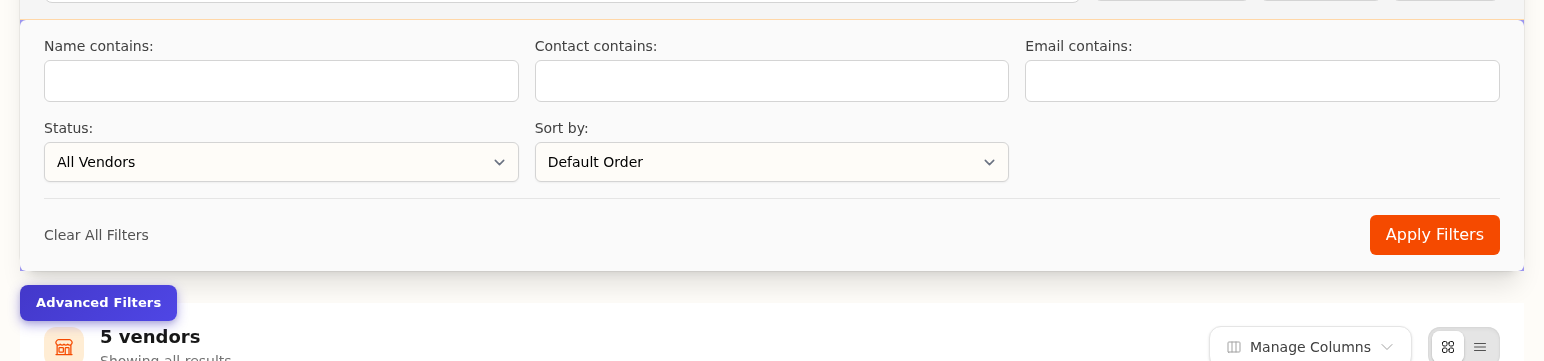
Advanced Filters
Click Filters for more options like contact name, email, and sorting:
Editing Vendors
To update vendor information:
- Go to Vendors
- Click the vendor name
- Click Edit in the navigation bar
- Update fields
- Click Save
Archiving Vendors
No longer using a vendor? Archive instead of deleting:
- Open the vendor
- Click Archive
- Confirm
Archived vendors:
- Don't appear in vendor dropdowns
- Keep all historical data (invoices, prices)
- Can be restored anytime
To view archived vendors: Vendors → Archived filter
Common Questions
Q: Can I have multiple vendors with the same name?
A: Yes, but it's not recommended. Use distinguishing details (location, account number) in the name if needed.
Q: What happens if I delete a vendor?
A: Vendors are archived, not deleted. Historical data is preserved. To permanently remove, contact support.
Q: Do I need to set the schedule information?
A: It's optional but helpful. It enables features like "next available order date" and minimum order warnings.
Q: Can different locations have different vendors?
A: Yes. Vendors are location-specific. Each location maintains its own vendor list.
Next Steps
- Vendor Items — Add products from this vendor
- Preferred Vendors — Set as preferred for ingredients
- Invoice Scanning — Process invoices from this vendor
Last updated: October 09, 2026