Scaling Recipes
Quickly scale your recipes up or down to match your production needs. Whether you're doubling a recipe for a large event or halving it for a small batch, the scaling tools make it easy.
How It Fits Together
Scaling is a core capability used throughout the system:
Recipe Scaling
├── Recipe Editor ─────────► Scale by servings, yield, or ingredient
│
├── Menu Items ────────────► Scale recipes to match portion sizes
│   └── 1 recipe serving = 0.5 menu portions? Auto-scales costs
│
├── Production Planning ───► Calculate ingredient needs for batches
│   └── "Make 50 servings" → Shows exact quantities needed
│
├── Meal Planning ─────────► Generate shopping lists
│   └── Week's meals → Total scaled ingredient requirements
│
└── Costs ─────────────────► All costs recalculate automatically
    └── 2x scale = 2x ingredient costs
When you scale anywhere in the system, ingredient quantities, costs, and derived values all update together.
Scaling Methods
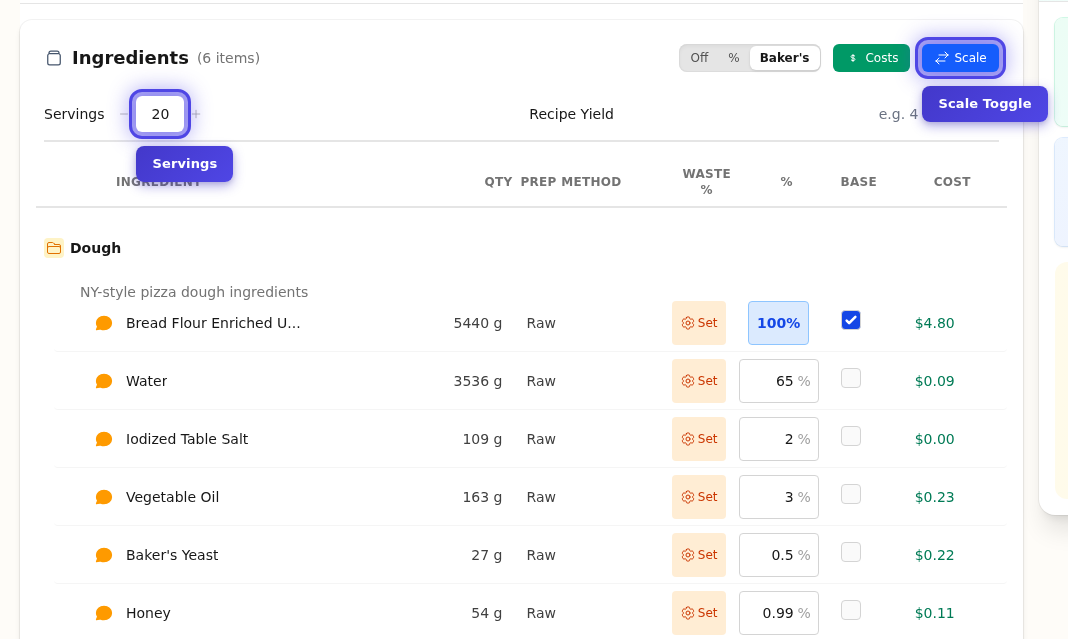
The ingredients panel gives you quick access to scaling controls:
Method 1: Quick Scale
The fastest way to scale is using the Scale button in the ingredient controls:
- Click the Scale toggle in the ingredients panel
- Edit any ingredient quantity
- All other ingredients scale proportionally
- Click Scale again to exit scale mode
Watch it in action:
This is ideal when you know the exact amount of one ingredient you have available.
Method 2: Change Servings
Adjust the servings number to automatically scale all ingredients:
- Find the Servings field in the ingredients panel
- Use the +/- buttons or type a new number
- All ingredients update automatically
This is perfect when you know how many portions you need.
Method 3: Scale Modal
For precise control, use the Scale Recipe modal:

- Click the Scale circle in the navigation dashboard (blue circle with arrows icon)
- Choose to scale by Servings or Yield
- Use quick scale buttons (0.5x, 2x, 3x, etc.) or enter a custom value
- Click Refresh Preview to see the scaled quantities
- Click Generate Scaled Recipe to apply
Watch it in action:
How Scaling Works
When you scale a recipe:
- Quantities - All ingredient amounts multiply by your scale factor
- Servings - Updates to reflect the new yield
- Yield - Adjusts proportionally (if set)
- Costs - Recalculate automatically based on new quantities
Note: Instructions don't scale automatically—you may need to adjust cooking times for larger batches.
Scaling Best Practices
For Accurate Scaling
- Set your recipe yield accurately (e.g., "makes 2 quarts")
- Use consistent units across similar ingredients
- Review scaled quantities for reasonableness
Things to Watch For
- Cooking times may need adjustment for larger volumes
- Seasoning often doesn't scale linearly—taste and adjust
- Equipment capacity - make sure your pans and ovens can handle the scaled amount
- Leavening agents (baking powder, yeast) may need adjustment for very large batches
Common Questions
Q: Can I save a scaled version as a new recipe?
A: Yes! Scale the recipe, then use Actions → Duplicate to save the scaled version as a new recipe.
Q: Does scaling affect my original recipe?
A: No, scaling is temporary for viewing purposes. Your original recipe quantities are preserved.
Q: Why do my costs change when I scale?
A: Costs are calculated based on ingredient quantities. When you scale up, you use more ingredients, so the total cost increases proportionally.
Q: Can I scale by yield instead of servings?
A: Yes! If you have a yield set (e.g., "4 cups"), you can scale based on the desired output quantity.
Next Steps
- Creating Recipes - Learn recipe basics
- Recipe Options - Configure recipe settings
- Prep Recipes - Create reusable components
Last updated: October 09, 2026