Creating Recipes
This guide walks you through creating and managing recipes in the system. Whether you're documenting a simple dish or a complex multi-component recipe, this guide covers everything you need to know.
Quick Start: Creating Your First Recipe
- Navigate to Recipes from the main menu
- Click the New Recipe button
- Enter a Recipe Name and optionally select a Category
- Click Create Recipe to open the recipe editor
Watch it in action:
The Recipe Editor
After creating a recipe, you'll see the recipe editor with a navigation dashboard at the top. The editor displays your recipe in a traditional two-column format with ingredients on the left and instructions on the right.
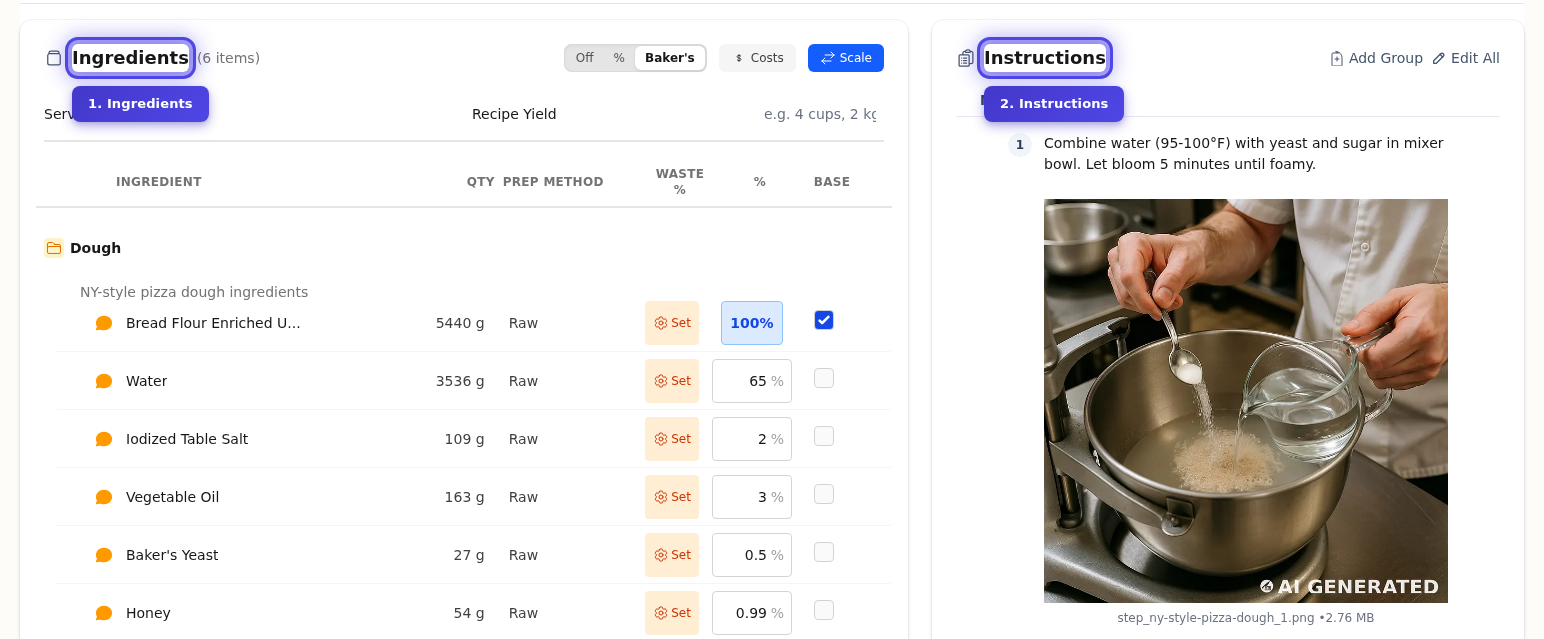
Navigation Dashboard
The navigation bar provides quick access to different sections of your recipe:

- Recipe - View and edit ingredients & instructions
- Details - Edit name, servings, yield, category, tags, and settings (see Recipe Options)
- Cost Analysis - View cost breakdown and pricing
- Menu Items - See which menu items use this recipe
- Play Recipe - Interactive step-by-step cooking mode (see Recipe Player)
- Share - Share publicly or via private link (see Sharing Recipes)
Navigate between sections:
Adding Ingredients
You have multiple ways to add ingredients to your recipe—use whichever method works best for your workflow.
Method 1: Quick Add (Paste Multiple Ingredients)
The fastest way to add many ingredients at once is using Quick Add. Click the Quick Add button and paste or type your ingredient list in natural language format:
Supported formats:
2 cups all-purpose flour
1 tsp salt
3 eggs
1/2 cup milk, room temperature
3 large onions, diced
The system parses quantities, units, and preparation notes automatically. This is ideal when you're copying ingredients from another source or entering multiple ingredients at once.
Method 2: Inline Add (One at a Time)
Want to add ingredients one by one? Click the + Add Ingredient button directly in the ingredients list. This opens an inline form where you can:
- Search for an ingredient from your database
- Enter the quantity and unit together in a single field
- Select a preparation method if needed
- Click Save to add it to your recipe
This method is great when you're building a recipe from scratch and want to carefully select each ingredient, or when you need to add just one or two items.
Smart Quantity Input
All quantity fields in the recipe editor accept both the amount and unit of measure together. Simply type the quantity and unit in one field:
Examples:
2 literor2 l1/2 cupor0.5 cup1 1/2 cups250 gramsor250 g3 tablespoonsor3 tbsp
As you type, the system auto-suggests matching units. For example, typing 2 li will show suggestions like "2 liter" and "2 lime" so you can quickly select the right unit. The system understands fractions (1/2, 1/4, 2/3) and decimals (1.5, 2.25), making it easy to enter precise measurements.
Method 3: AI Recipe Generation (Paste a Full Recipe)
Have a recipe from another source? Paste the entire recipe—including ingredients and instructions—into the AI Chat and let the AI generate your recipe automatically.
- Open the AI Chat (available from the chat icon)
- Paste your full recipe text (ingredients, instructions, everything)
- The AI will parse and structure the recipe for you
- Review the generated recipe and click Save to add it to your collection
This is perfect when you have a recipe from a cookbook, website, or family recipe card and want to import it quickly without manual entry.
Tip: You can add ingredients one at a time, use Quick Add to paste multiple at once, or let the AI generate your recipe—whichever works best for your workflow.
Ingredients Panel
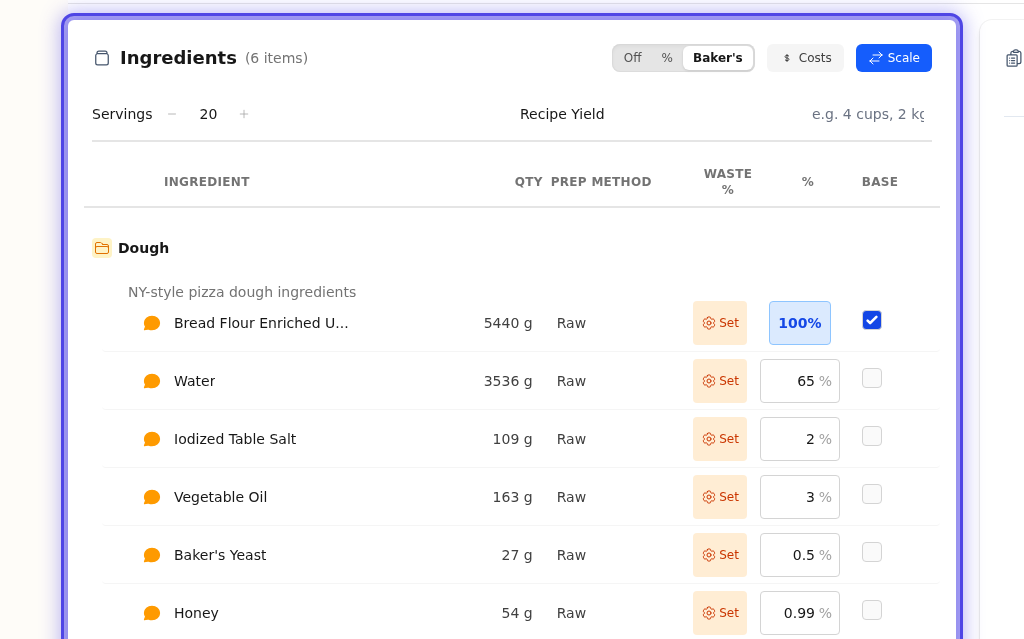
The ingredients panel is where you manage all the ingredients for your recipe. You can add ingredients directly here by clicking the + Add Ingredient button at the bottom of the list.
The panel displays:
- Servings - Adjust with +/- buttons
- Recipe Yield - The quantity the recipe produces
- Ingredient list - Each ingredient with quantity, unit, and name
Ingredient Controls
Toggle different views of your ingredients:
| Control | What it does |
|---|---|
| % | Toggle percentage calculations (see below) |
| Costs | Show/hide ingredient costs inline next to each ingredient |
| Scale | Enter scale mode to adjust all quantities proportionally (see Scaling Recipes) |
Percentage Calculations
The % toggle lets you view your recipe with ingredient percentages—useful for scaling, consistency, and professional baking. Choose between two modes:
Standard Percentage
Each ingredient shown as a percentage of the total recipe weight.
| What it calculates | Ingredient Weight ÷ Total Recipe Weight × 100 |
| Best for | Understanding ingredient proportions, comparing recipes, ensuring consistency |
| Example | In a 1000g recipe, 200g of sugar = 20% of the total |
Baker's Percentage
Each ingredient shown as a percentage of the base ingredient (typically flour). The base ingredient is always 100%.
| What it calculates | Ingredient Weight ÷ Base Ingredient Weight × 100 |
| Best for | Bread, pastry, and dough recipes where flour is the foundation |
| Example | For a dough with 1000g flour and 650g water: water = 65% (hydration) |
Tip
Baker's percentage requires marking a base ingredient (usually flour). Click the checkbox next to an ingredient to set it as the base. Professional bakers use this to quickly understand dough hydration and scaling.
Adding Instructions
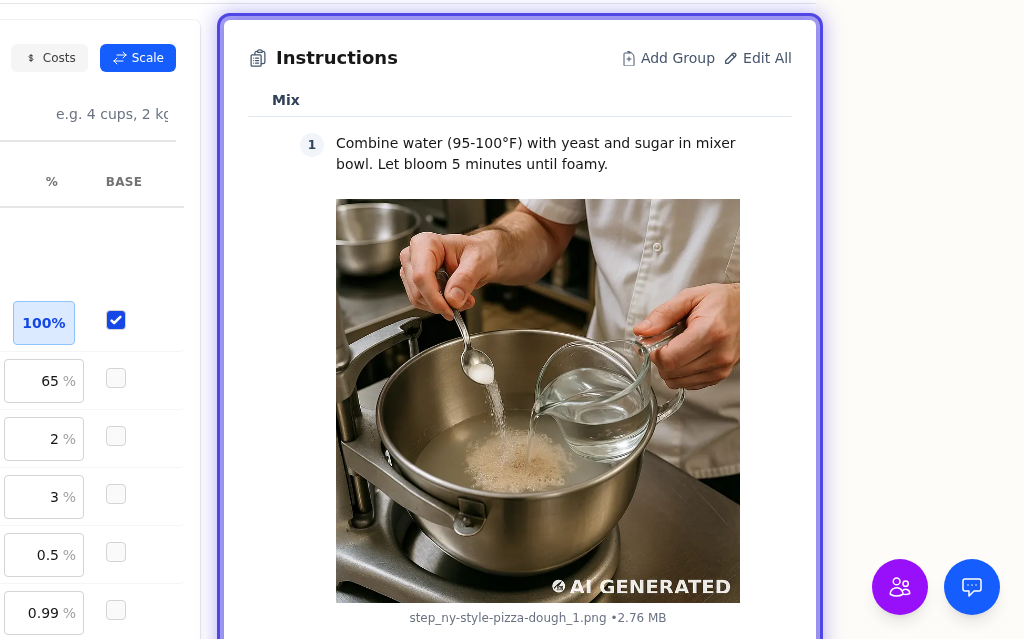
Instructions appear on the right side, organized by groups if you've created them.
Adding a New Instruction
Click the + Add instruction row to add a new step:
Organizing Instructions
- Add Group - Organize instructions into sections (e.g., "Prep", "Cooking", "Assembly")
- Edit All - Bulk-edit instructions in a text editor
- Drag & Drop - Reorder instructions or move between groups
Tip: Add a line ending with : in bulk edit mode to create a group (e.g., "Make the Dough:")
Cost Analysis
Click Cost Analysis in the navigation to see pricing details:
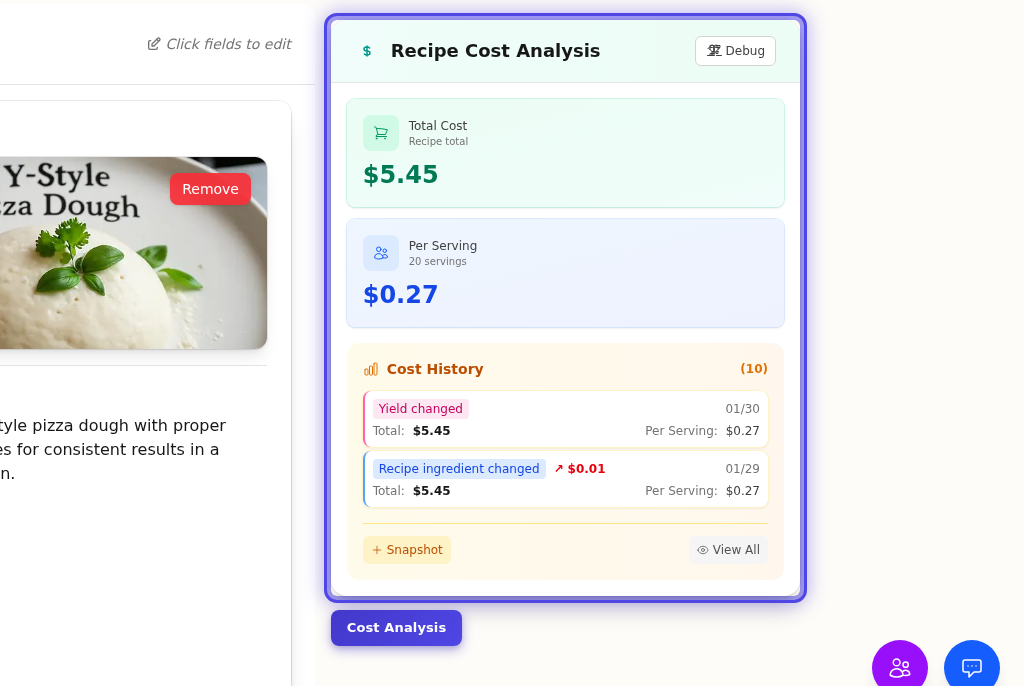
Understanding the Cost Metrics
Total Recipe Cost
Sum of all ingredient costs for one batch of the recipe.
| What it calculates | Sum of (each ingredient's quantity × ingredient's unit cost) |
| Where it's used | The foundation for all other cost calculations |
| Example | A recipe using $5 of flour + $2 of butter + $1 of eggs = $8 total cost |
Cost Per Serving
How much each portion costs to make.
| What it calculates | Total Recipe Cost ÷ Servings |
| Where it's used | Menu item pricing—determines your food cost per plate |
| Example | An $8 recipe with 4 servings = $2.00 per serving |
Unit Cost
How much each unit of output costs (per cup, per kg, etc.).
| What it calculates | Total Recipe Cost ÷ Yield Quantity |
| Where it's used | When this recipe is used as an ingredient in another recipe |
| Example | A $10 sauce recipe yielding 2 liters = $5.00 per liter |
Note: Costs are calculated from your vendor prices. If an ingredient shows a warning icon, it's missing a vendor price or the system can't convert between the recipe unit and purchase unit.
Sharing & Export
Click Share in the navigation to share your recipe with others:
- Start Sharing - Generate a public link anyone can access
- Copy Link - Copy the public URL to share via text, email, or messaging
- Settings - Configure sharing options (public vs link-only, embedding, costs visibility)
For complete details on sharing options, see Sharing Recipes.
Tips for Great Recipes
For Costing Accuracy
- Always link to ingredients in your database (not free-form text)
- Set accurate yields for prep recipes
- Keep ingredient prices current
- Use preparation yield for items with significant waste
For Usability
- Use clear, consistent naming
- Organize with instruction groups for complex recipes
- Include photos
- Add helpful notes in ingredient preparation methods
Common Questions
Q: What's the fastest way to add ingredients?
A: It depends on your situation:
- Quick Add is fastest when you have a list of ingredients to paste
- Inline Add is best for adding one ingredient at a time with precision
- AI Chat is ideal when you have a full recipe from another source to import
Q: Can I duplicate a recipe?
A: Yes! Use the Actions menu to duplicate with all ingredients and instructions.
Q: What if an ingredient isn't in my database?
A: Add new ingredients on the fly from the ingredient selector, or go to Ingredients first to add with full details.
Q: Why isn't my cost calculating?
A: Check that:
- Ingredients are linked (not just text)
- Ingredients have vendor costs set
- Units can be converted (recipe unit → purchase unit)
Q: How do I delete a recipe?
A: From the recipes list, use the Actions column to archive or permanently delete.
Next Steps
- Recipe Options - Configure recipe settings, categories, tags, and allergens
- Scaling Recipes - Scale recipes up or down for different batch sizes
- Prep Recipes - Create reusable components like sauces, stocks, and doughs
- Recipe Player - Step-by-step cooking mode with timers and ingredient tracking
- Sharing Recipes - Share recipes publicly or via private link
- Managing Ingredients
- Building Menus
- Understanding Costs
Last updated: October 09, 2026